
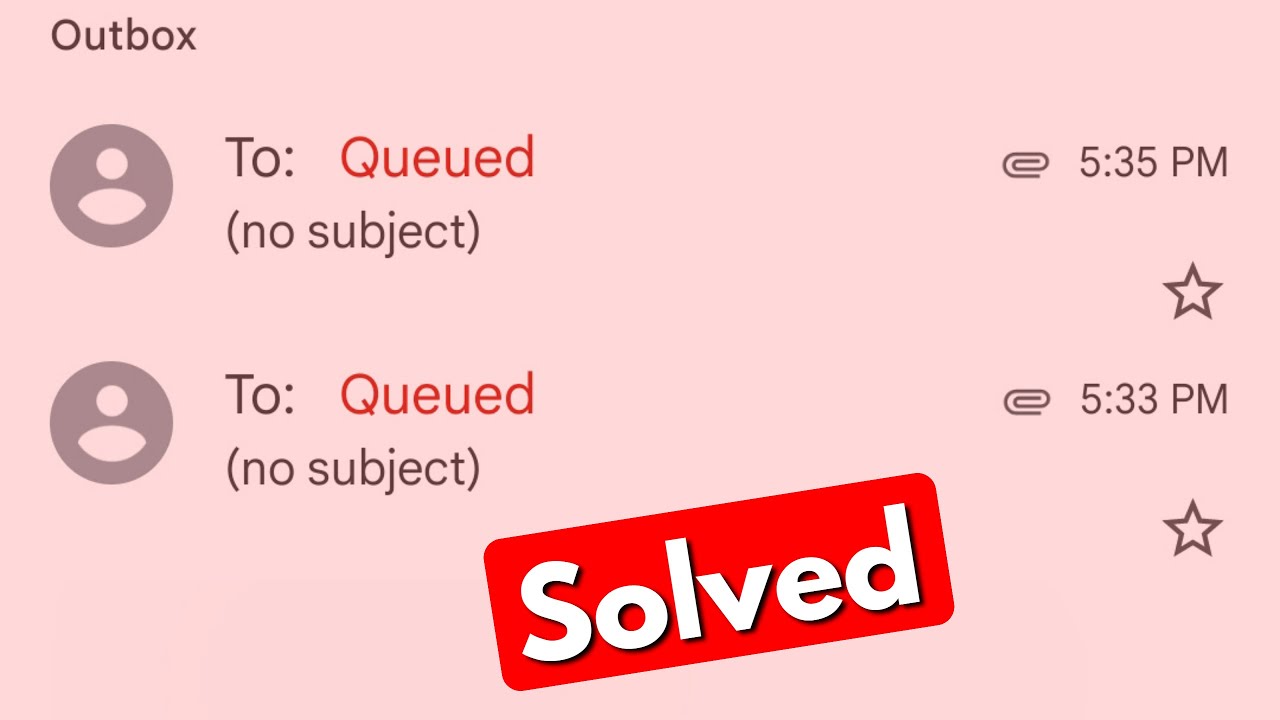
Welcome to this article where I will be sharing some tips on how to solve the issue of queued emails in Gmail. If you are frequently using Gmail, you may have seen queued emails in your Gmail account. This issue can be frustrating as it can prevent you from sending important emails to your contacts or clients. In this article, I will share some effective methods to solve queued emails in Gmail.
The first method to solve queued emails in Gmail is to clear the cache and cookies of your browser. To do this, go to your browser settings and look for the option to clear browsing data. Select the cache and cookies option and clear them. Once you have cleared your browser cache and cookies, try sending the email again.
Disable Your Browser Extensions
If clearing the cache and cookies doesn't solve the problem, try disabling your browser extensions. Extensions are programs that modify the functionality of your browser. Sometimes, certain extensions can interfere with Gmail's functionality and cause emails to be queued. To disable your extensions, go to the settings of your browser and select the extensions option. From there, disable all the extensions and try again.
Check Your Internet Connection
If you’re still facing the issue of queued emails in Gmail, check your internet connection. Ensure that your internet connection is strong enough to support sending and receiving messages. You can also try turning off your Wi-Fi and turning it on again. This can help you get a fresh connection and may solve the issue.
Scan Your Computer for Malware
If the above-mentioned methods don't work, scan your computer for malware or viruses. Malware can affect the performance of your browser and your computer. It can also cause queued emails in Gmail. Scan your computer with updated antivirus software and remove all malware detected.
Use Gmail Support
If you’re still having trouble sending emails, then it’s time to seek help from Gmail support. Gmail offers a helpful support team that can help solve your problem. You can visit the Gmail support page on your browser and contact the support team. They will guide you through the steps to resolve the issue.
Conclusion
Queued emails in Gmail can be frustrating, especially if you need to send important messages. However, with the above-mentioned methods, you can solve the problem easily. Clear the cache and cookies, disable the extensions, check your internet connection, scan your computer for malware, and seek help from Gmail support. These are some effective solutions to solve queued emails in Gmail.
