
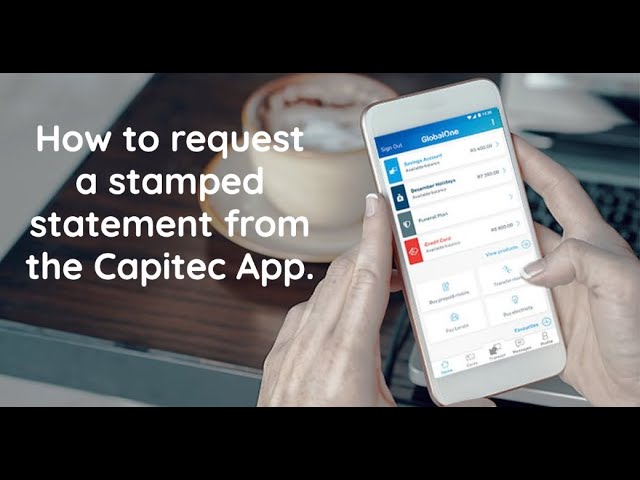
Are you a Capitec Bank account holder and wondering how to get your bank statement on the Capitec app? Look no further, in this article, we will guide you through the simple steps to get your statement from the comfort of your smartphone.
Step 1: Download & Install Capitec App
The first step to get your bank statement on the Capitec app is to download the app from your app store. The app is available for both Android and iOS devices. After downloading the app, install it on your phone.
Step 2: Login to the App
Once you have installed the app on your phone, launch it and enter your account details to login into the app. If you do not have an account, you can register for one using the app.
Step 3: Access Statements
After logging into the app, you will be redirected to the home screen. On the menu bar at the bottom of the screen, tap the ‘Transact’ button. This will open a new page with several tabs, locate and tap the ‘Statements’ tab.
Step 4: Select Account & Date Range
On the statements page, select the account you want the statement for, and choose the date range for the statement. You can either select to get the current month’s statement or choose a custom range of up to three months.
Step 5: Confirm Statement Request
After selecting the account and the date range, tap the ‘Request Statement’ button. You will be asked to confirm the statement request, once you approve it, the bank will prepare and send you the statement via email.
Note:
If you have not yet registered for email statements, you will be prompted to do so before the statement request can be processed. Also, ensure that your email address registered with Capitec Bank is up to date to avoid any delays in receiving your statement.
Conclusion
In conclusion, getting your bank statement on the Capitec app is a straightforward process that will take you a few minutes. All you need to do is download the app, login, select the account and date range, and request the statement. The bank will send you a copy of the statement via email. Make sure you have an email registered with Capitec Bank and that it is up to date to avoid delays.
