
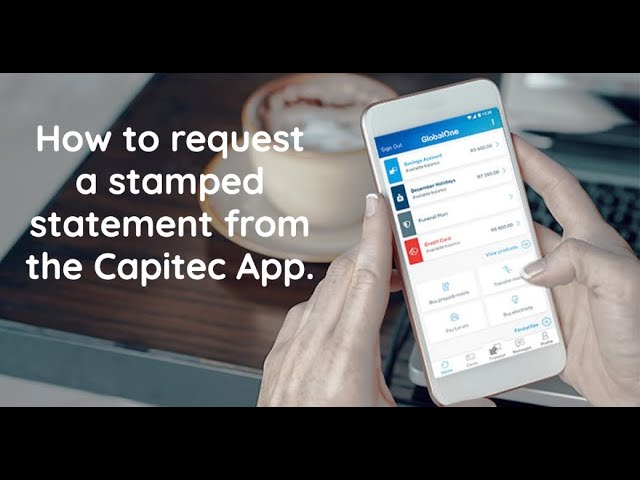
As we move towards a more digitalized era, most of our transactions are being made online. Mobile banking has become a popular choice among people because of its convenience and accessibility. Capitec Bank is one of the leading banks in South Africa and provides its customers with various digital services, one of which is its mobile app. The Capitec app allows you to manage your bank account, check your balance, make payments, and even get statements. In this article, we will guide you on how to get a statement from the Capitec app.
What is a bank statement?
A bank statement is a summary of all the transactions made in a bank account within a specified period. It includes all the deposits, withdrawals, and other charges incurred. A bank statement is required for various purposes such as auditing, tax filing, and even for personal financial record-keeping.
Why get a statement from the Capitec app?
The Capitec app allows you to access your bank statement anytime, anywhere. You don't have to visit the bank or wait for the statement to be delivered to you via post or email. This saves you time and effort, and you can keep track of your transactions without any hassle.
How to get a statement from the Capitec app?
Getting a statement from the Capitec app is simple and easy. Follow the steps below:
Step 1:
Open the Capitec app on your mobile device and log in using your credentials.
Step 2:
Once you've logged in, click on the 'Menu' option located at the bottom right of the screen.
Step 3:
In the menu, select the 'Statements' option.
Step 4:
Choose the account for which you want to view the statement.
Step 5:
Specify the date range for the statement you wish to view. You can choose a maximum of 3 months of transaction history.
Note: If you require a statement for a period longer than 3 months, you will need to visit your nearest Capitec bank branch and request it from a consultant.
Step 6:
Click on 'Generate Statement'.
Step 7:
Your statement will now be generated and displayed on the screen. You can also choose to download the statement on your device or send it via email.
Conclusion:
The Capitec app provides a convenient way of managing your bank account and accessing various services, including getting bank statements. By following the above steps, you can obtain your statement within minutes. It is essential to keep track of your transactions and maintain financial records for future reference. With the Capitec app, this process has become more straightforward and accessible without any additional cost to you.
