
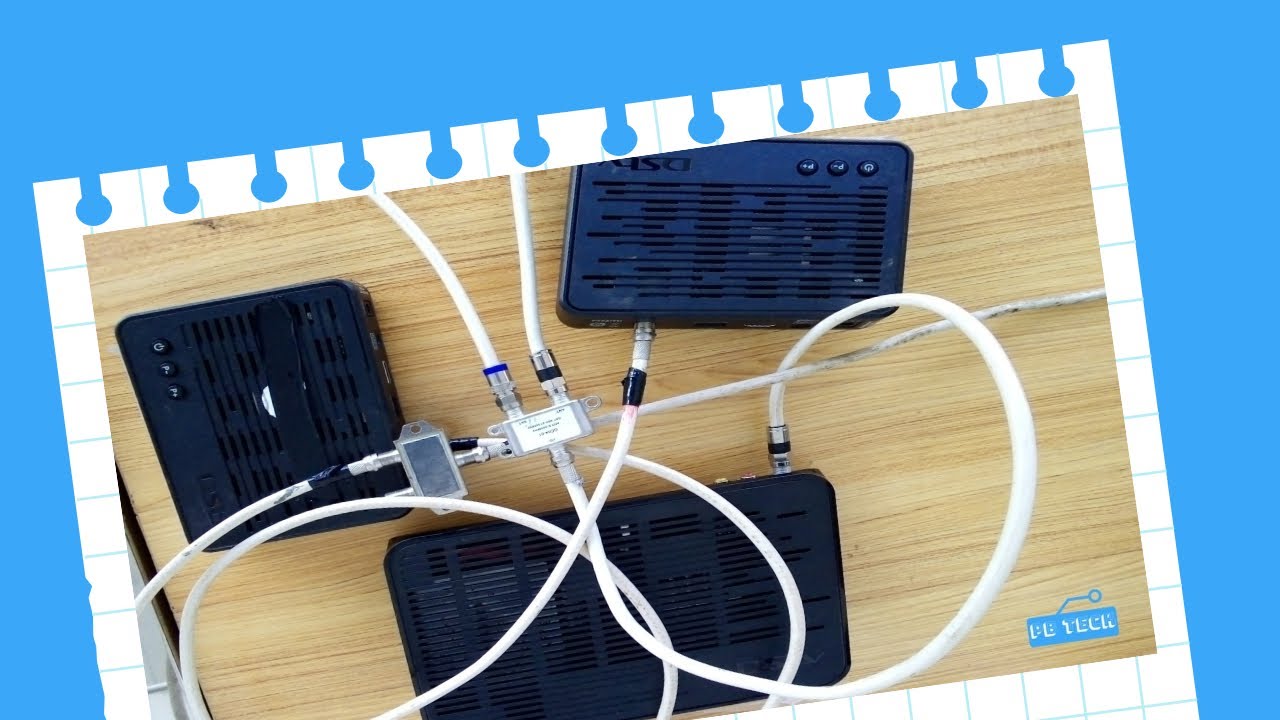
Are you tired of fighting over the television remote with your family members or roommates and have been thinking about getting the DStv XtraView, which allows you to connect two decoders? The setup may seem intimidating but it's actually very simple if you follow the right steps. In this article, we'll guide you through how to connect two DStv decoders for XtraView.
What You'll Need
Before we begin with the instructions, you'll need to ensure that you have the following items:
- Two DStv Decoders
- A DStv Smart LNB
- Two Coaxial cables
- A standard TV cable
- A splitter (optional)
Once you have all the necessary equipment, you're good to go!
Step 1: Install the DStv Smart LNB
The DStv Smart LNB is an integral part of the XtraView installation process. You'll need to install it before you can connect your two decoders. To install it:
- Locate your satellite dish and unscrew the old LNB.
- Screw in the new DStv Smart LNB onto the holder.
- Connect the LNB cable to port A on the Smart LNB.
- Connect the standard TV cable to the UNICABLE port on the Smart LNB.
Step 2: Connect the Coaxial Cables
Now that the Smart LNB is installed, you need to connect your two decoders to it. Connect the first decoder to the LNB by:
- Connect one end of the first coaxial cable to the "LNB IN" port located at the back of the decoder.
- Connect the other end of the cable to the "Unicable In" port that is labeled "Port A" located at the back of the Smart LNB.
Now, for the second decoder:
- Connect one end of the second coaxial cable to the "LNB IN" port located at the back of the decoder.
- Connect the other end of the cable to the "Unicable In" port that is labeled "Port B" located at the back of the Smart LNB.
Step 3: Set Up XtraView
Now that both decoders are connected to the Smart LNB, it's time to set up XtraView:
- Switch on both decoders.
- On the primary decoder remote, press menu, then navigate to "Settings," then "User Preferences."
- Select "XtraView Setup" and follow the prompts that appear on the screen.
- When prompted for a heartbeat cable, you can connect a splitter to the "RF OUT" port on the primary decoder and then connect the TV cable and the second decoder to each of the two outputs on the splitter. Alternatively, you can run a second TV cable from the primary decoder RF "OUT" to the RF "IN" port on the secondary decoder.
- Follow the remaining prompts to complete the setup process.
Troubleshooting
In some cases, you might encounter issues while setting up XtraView. Here are some common problems and how to fix them:
- If you can't see the heartbeats or are receiving an error message, try using a different set of coaxial cables.
- If you're unable to activate XtraView on your account, contact DStv customer support for assistance or visit their website for a step-by-step guide.
- If the secondary decoder has no picture or sound, check that both decoders are switched on and that the TV is on the correct input source or channel.
- If you're experiencing an E143 error message, check that both decoders are connected via the Smart LNB.
Conclusion
Setting up the DStv XtraView is straightforward if you have the right equipment and follow the instructions. Now that you know how to connect two DStv decoders for XtraView, you can enjoy uninterrupted entertainment with loved ones without fighting over the remote control.
