
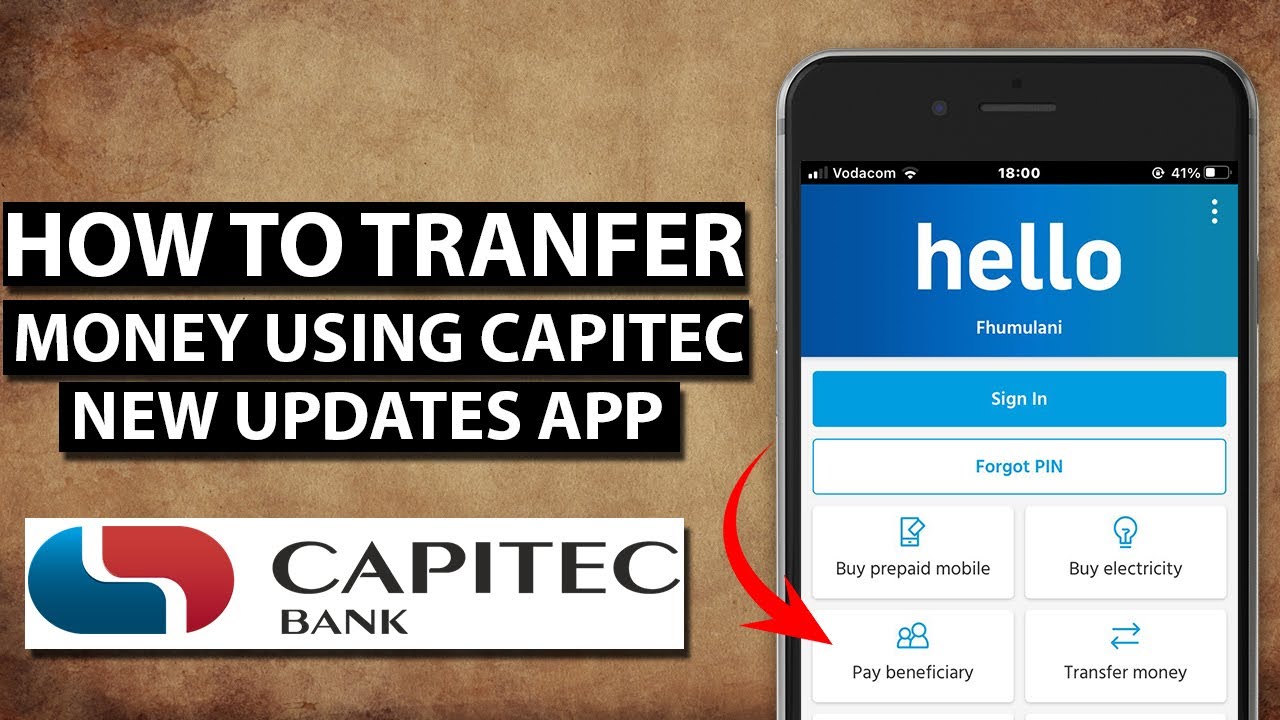
Are you a Capitec Bank account holder wondering how to add a beneficiary on the Capitec App? Luckily, the process is straightforward, and you can add a beneficiary with ease. We've got you covered with a comprehensive guide on how to add a beneficiary on the Capitec App.
Step 1: Download and Install Capitec Bank App
If you haven't downloaded and installed the Capitec Bank App, you need to do that first. The Capitec App is available on both App Store and Google Playstore. Once you've downloaded and installed the App, open it and log in to your account.
Step 2: Click on the 'Transact' Tab
After logging in to your Capitec Bank App account, click on the 'Transact' tab located at the bottom left corner of your screen. A new page will open up with various transaction options, including 'Payments,' 'Buy,' and 'Send Cash.'
Step 3: Select 'Payments'
To add a beneficiary, you need to select 'Payments' from the options available in the 'Transact' tab. Click on the '+ Add' button that appears next to the 'Payments' option. You will be redirected to a new page, titled 'Add Payment.'
Step 4: Add the Beneficiary
On the 'Add Payment' page, enter the necessary information about the beneficiary, including their name, bank account number, and bank branch code. Make sure to double-check this information to ensure accuracy. Once you've entered all the required information, click on the 'Next' button.
Note:
Ensure that the beneficiary's bank is one of the banks supported by Capitec Bank to avoid any transfer issues.
Step 5: Verify and Save the Beneficiary
After clicking on the 'Next' button, review the beneficiary's information provided in the previous step. If you are sure that all the information is accurate, click on the 'Save' button to complete the process. Congratulations! You've successfully added a beneficiary on the Capitec Bank App.
Step 6: Make a Payment to the Beneficiary
After adding the beneficiary, you can now easily make payments to them via the Capitec Bank App. Select 'Payments' on the 'Transact' tab and choose the beneficiary you've added. You can then enter the amount you want to send and provide any additional information required. Finally, click on the 'Pay' button, and the payment will be processed.
Note:
Remember to keep your login details safe to prevent unauthorized access to your account.
Adding a beneficiary on the Capitec Bank App is easy and straightforward. By following the above steps, you can add a beneficiary with ease and make payments to them at any time conveniently. Take advantage of this excellent banking feature and make your payments efficient.
