
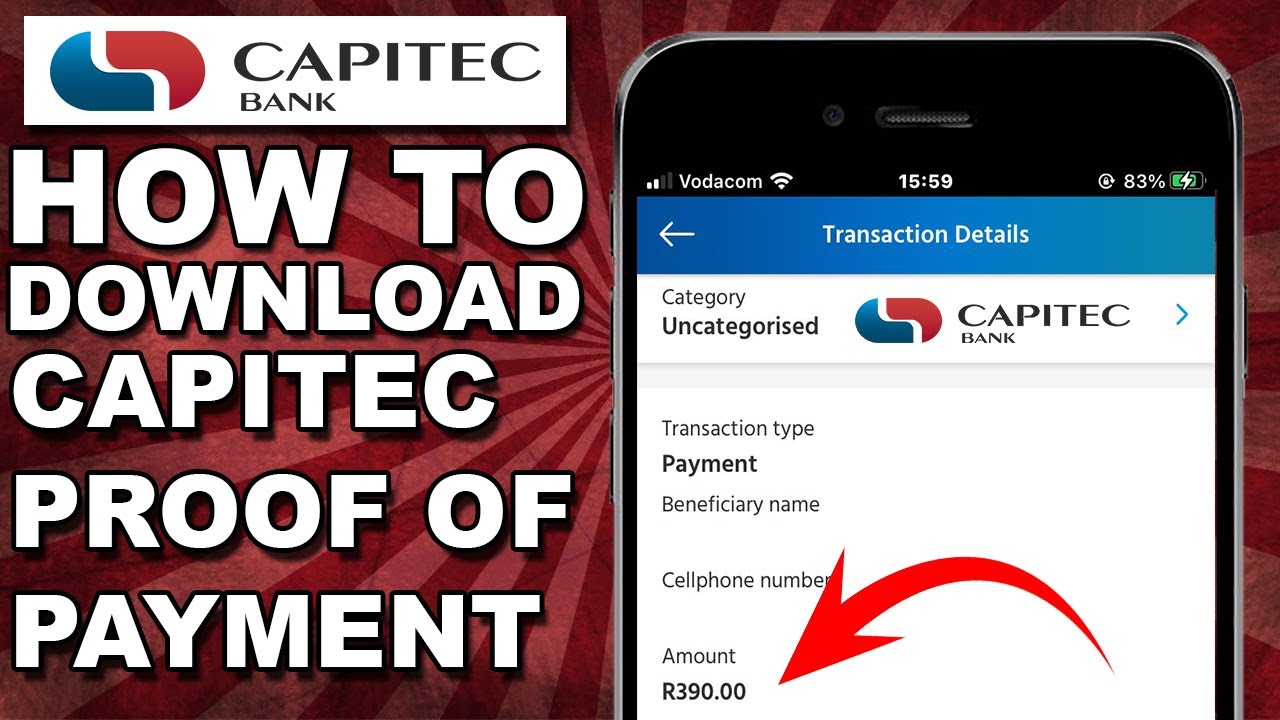
Are you having trouble printing your proof of payment on the Capitec app? Don't worry, we've got you covered. In this article, we will guide you through the process of printing your proof of payment on the Capitec app.
Step 1: Open the Capitec App
First, you need to open the Capitec app on your mobile device. If you have not downloaded the app yet, you can download it from the App Store or Google Play Store.
Step 2: Select the Transaction
Once you have opened the app, you need to select the transaction for which you want to print the proof of payment. You can do this by going to the 'Transactions' tab on the app and selecting the relevant transaction.
Step 3: Tap on 'View Details'
After selecting the transaction, you need to tap on the 'View Details' button to view the details of the transaction.
Step 4: Tap on 'Proof of Payment'
On the transaction details page, you will see an option to generate a proof of payment. Tap on the 'Proof of Payment' button to generate the proof of payment.
Step 5: Print the Proof of Payment
Once the proof of payment has been generated, you can either save it as a PDF or print it directly from the app. To print the proof of payment, select the 'Print' option and choose the printer you want to use. Make sure that your printer is connected and turned on.
If you have saved the proof of payment as a PDF, you can print it by transferring the PDF file to your computer and printing it from there.
Conclusion
Printing the proof of payment on the Capitec app is a simple process that can be done in a few easy steps. By following the steps outlined in this article, you can quickly and easily print your proof of payment.
