
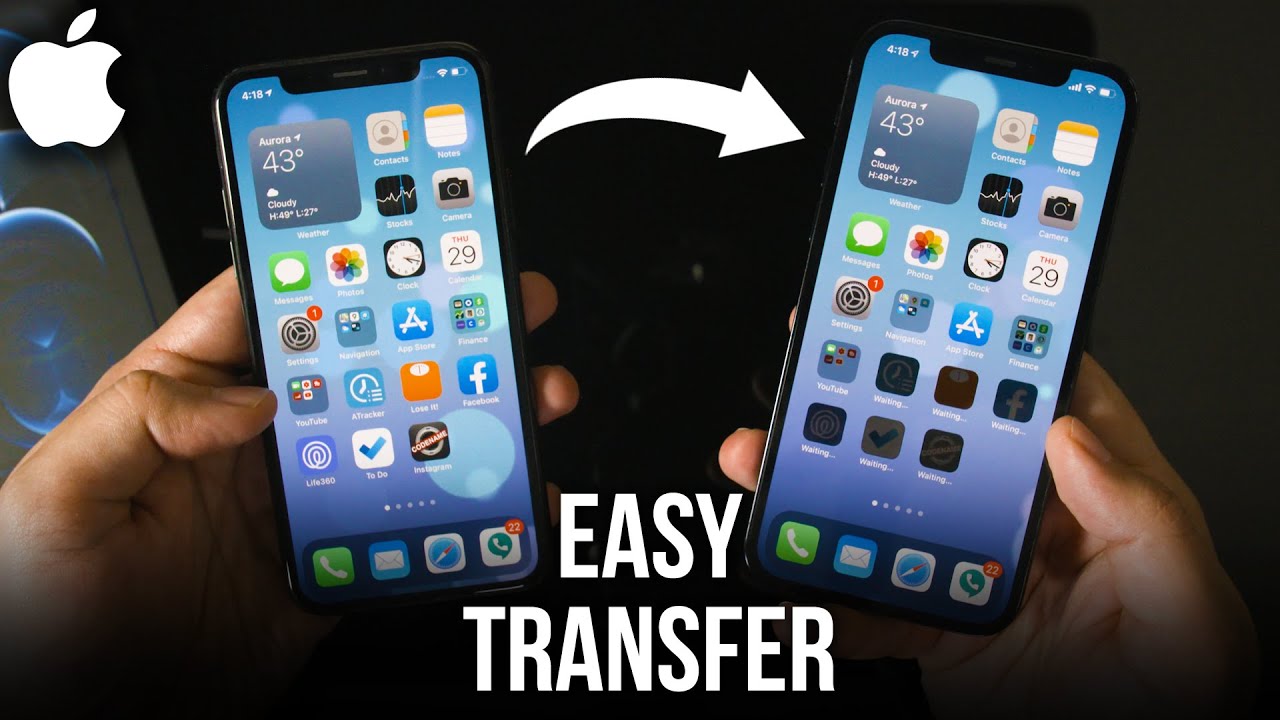
Data transfer is the process of moving or copying data from one device or storage location to another. The need for data transfer arises when the user wants to change to a new device, upgrade to a new system, backup important files, or simply share data with others.
Method 1: Using USB Drives
The simplest and most common method of data transfer still remains the classic USB drives or flash drives. USB drives are portable and user-friendly devices that can store a large amount of data. Here are some steps to transfer data using USB.
Step 1: Connect the USB drive to your computer
Plug one end of the USB drive into the USB port of the computer and wait for a few seconds for the computer to detect it.
Step 2: Select and copy the data
Open your file explorer and select the files or folders that you wish to transfer. Once selected, copy the data to the USB drive by right-clicking and selecting 'Copy' or by using the shortcut keys 'Ctrl+C' on Windows and 'Command+C' on Mac.
Step 3: Paste the data on the USB drive
Go to the USB drive folder in the file explorer and right-click, then select 'Paste' or use the shortcut keys 'Ctrl+V' on Windows and 'Command+V' on Mac to paste the files or folders onto the USB drive.
Method 2: Using Cloud Storage
Another popular and convenient method of data transfer is using cloud storage services like Google Drive, Dropbox, or OneDrive. Here are the steps involved:
Step 1: Sign up or log in to a cloud storage service
Create an account or log in to an existing account of a cloud storage service on your computer or mobile device.
Step 2: Upload the data to the cloud
Once logged in, click on the 'Upload' button or simply drag and drop the data that needs to be transferred into the cloud storage folder.
Step 3: Download the data from the cloud
To retrieve the uploaded data, open the cloud storage folder on the other device and select the files or folders, then click on the 'Download' button or simply drag and drop the data to the desired location on the device.
Method 3: Using LAN Cable
For larger data transfers, using a LAN cable or Ethernet cable could be the best option. This method is ideal when both devices are located in the same network or can be connected through WiFi. Here are the steps:
Step 1: Connect both devices to the same network
Ensure both devices are connected to the same LAN network, either through a network cable or WiFi connection.
On the sending device, right-click on the folder or drive that needs to be shared and select 'Properties'. In the 'Sharing' tab, click on 'Advanced Sharing' and select 'Share this folder'.
On the receiving device, open the file explorer and in the address bar, type the network address of the sending device, then press enter. The shared folder or drive should appear, where files can be copied or moved.
Note: While transferring data, it is essential to make sure that the files are secure and protected from any probable threats such as malware or data breaches. Hence, it is always advisable to use trusted hardware and software for data transfer and transmission.
