
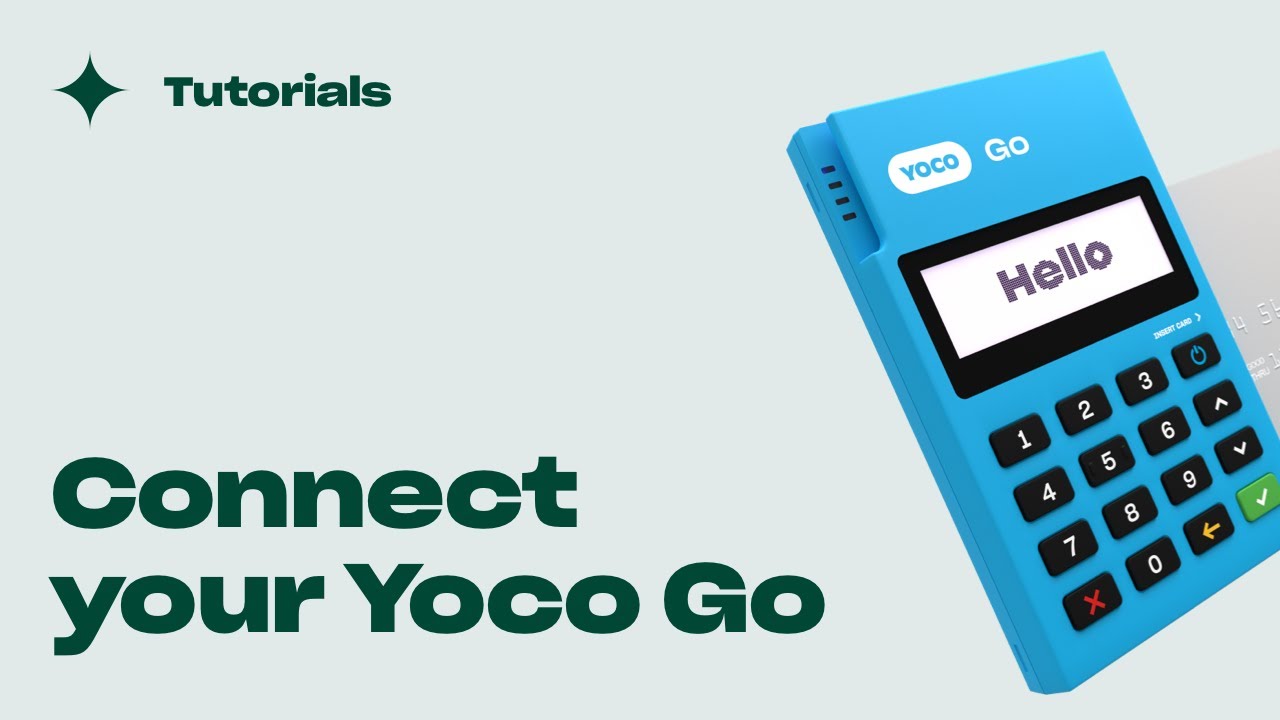
Welcome to our article on how to use Yoco card machines. Yoco is an easy-to-use, mobile card payment solution that allows businesses to accept card payments on the go.
Setting up your Yoco card machine
Before you can start using your Yoco card machine, you need to set it up. Here's what you need to do:
1. Charge your device
Ensure your Yoco card machine is fully charged before starting. To charge your device, simply connect the USB cable provided in the box to your device and a power source.
2. Connect to your smartphone or tablet
Download the Yoco app from the App Store or Google Play Store and sign up using your email address and mobile number. Connect your Yoco card machine to your smartphone or tablet via Bluetooth.
3. Add your products and services
Enter your product or service details into the Yoco app so you can easily select them when making a sale.
Making a sale with your Yoco card machine
Now that your Yoco card machine is set up, you're ready to start making sales. Here's what you need to do:
1. Select products or services
Use the Yoco app to select the products or services that you're selling.
2. Enter the amount
Enter the amount that the customer needs to pay into the Yoco app.
3. Insert or swipe the customer's card
Insert or swipe the customer's card into the Yoco card machine when prompted, and follow the instructions on the screen.
4. Customer signs the screen and receives their receipt via email or SMS
Once the transaction has been processed, the customer will need to sign the screen confirming the payment, and they will receive their receipt via email or SMS.
Troubleshooting common issues
While using your Yoco card machine, you may encounter some common issues. Here are some troubleshooting tips:
The card is not being recognized by the machine
Ensure that the customer's card is not bent or damaged, and try inserting or swiping the card again. If the problem persists, contact Yoco support for assistance.
The transaction is not going through
Ensure that the card being used is valid and has sufficient funds. If the problem persists, check your Yoco app's internet connection and try again. If the problem still persists, contact Yoco support for assistance.
The Yoco app is not connecting to the card machine
Ensure that your phone's Bluetooth is turned on and try reconnecting the Yoco card machine. If the problem persists, contact Yoco support for assistance.
We hope this guide has been helpful in getting you started with your Yoco card machine. Happy sales!
